Golf lesson scheduling software. Lessons & events, one place.
If you teach or fit golf for a living, your schedule lives in three places at once — texts with students, a paper calendar, and your memory. FitMyGolfClubs puts upcoming lessons, completed-lesson history, and club events on one calendar your clients can see too.
Create Your Pro Account →Free for up to 5 clients · no credit card required

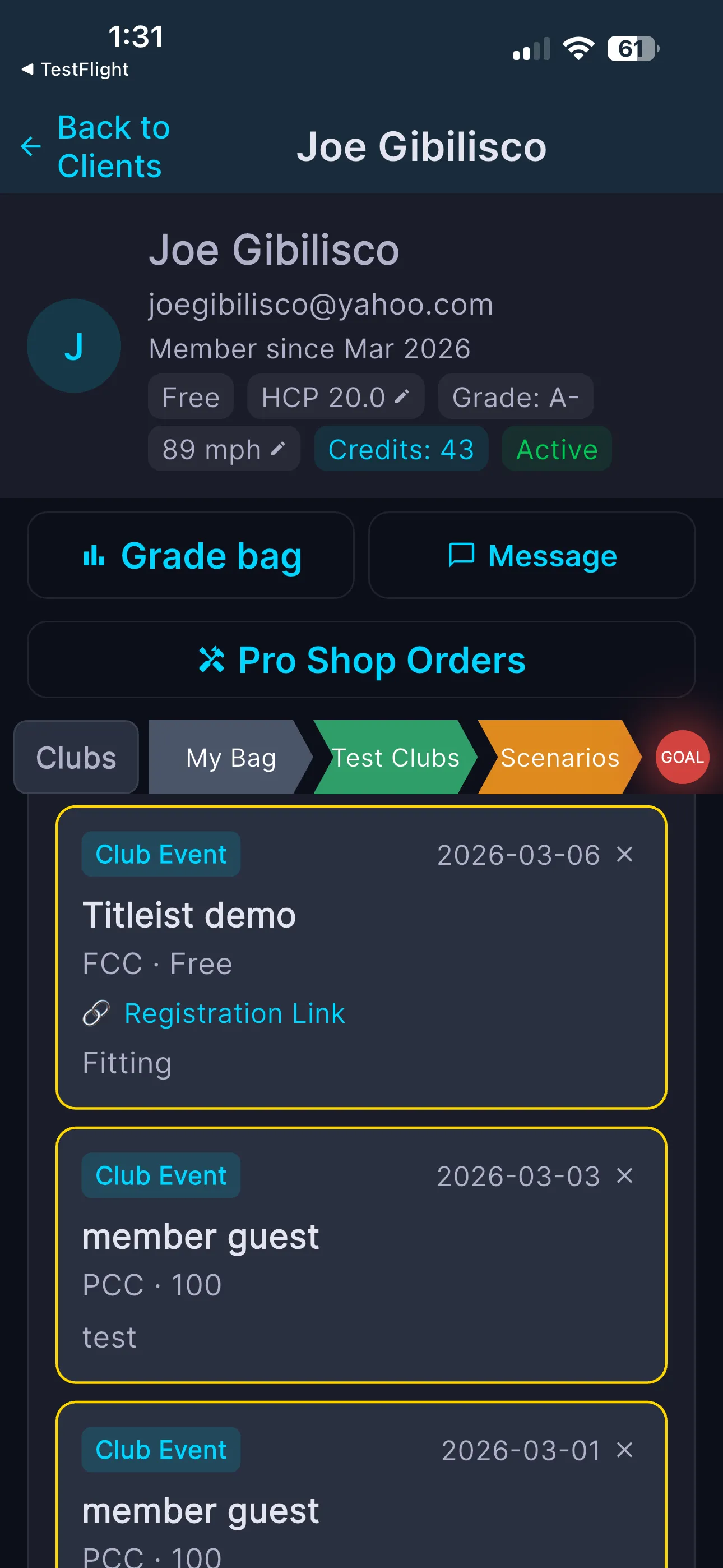
The All Events tab — every client, one calendar.
Demo days, clinics, tournaments — on everyone's radar.
Tap + New Event and the whole club knows about it.
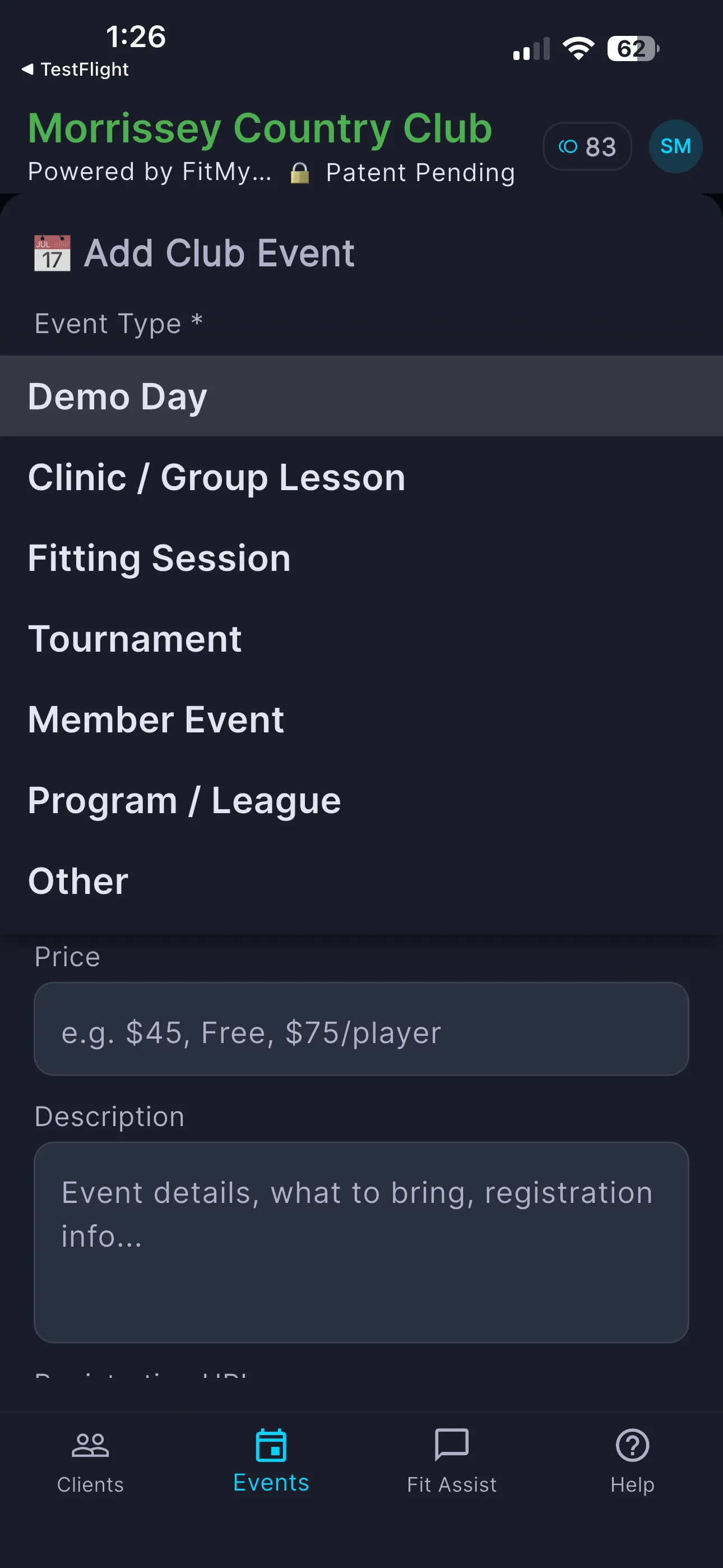
Create an event in one sheet
The "Add Club Event" sheet takes everything you need — the type sets the card's color so your calendar is scannable at a glance.
- ✓ 7 event types: Demo Day, Clinic / Group Lesson, Fitting Session, Tournament, Member Event, Program / League, Other
- ✓ Date, time, and location
- ✓ Free-form price — "$45," "Free," "$75/player"
- ✓ Description and registration URL
Send invites with the event
Before you hit Create, pick a delivery method and check off which clients to notify. The event appears in all your clients' Events tab automatically — invites go to the ones you pick.
- ✓ In-App, Email, SMS — or any combination
- ✓ Select All or hand-pick clients
- ✓ SMS goes only to clients who opted in
- ✓ Re-open invites later on any event

Schedule new lessons. Log finished ones.
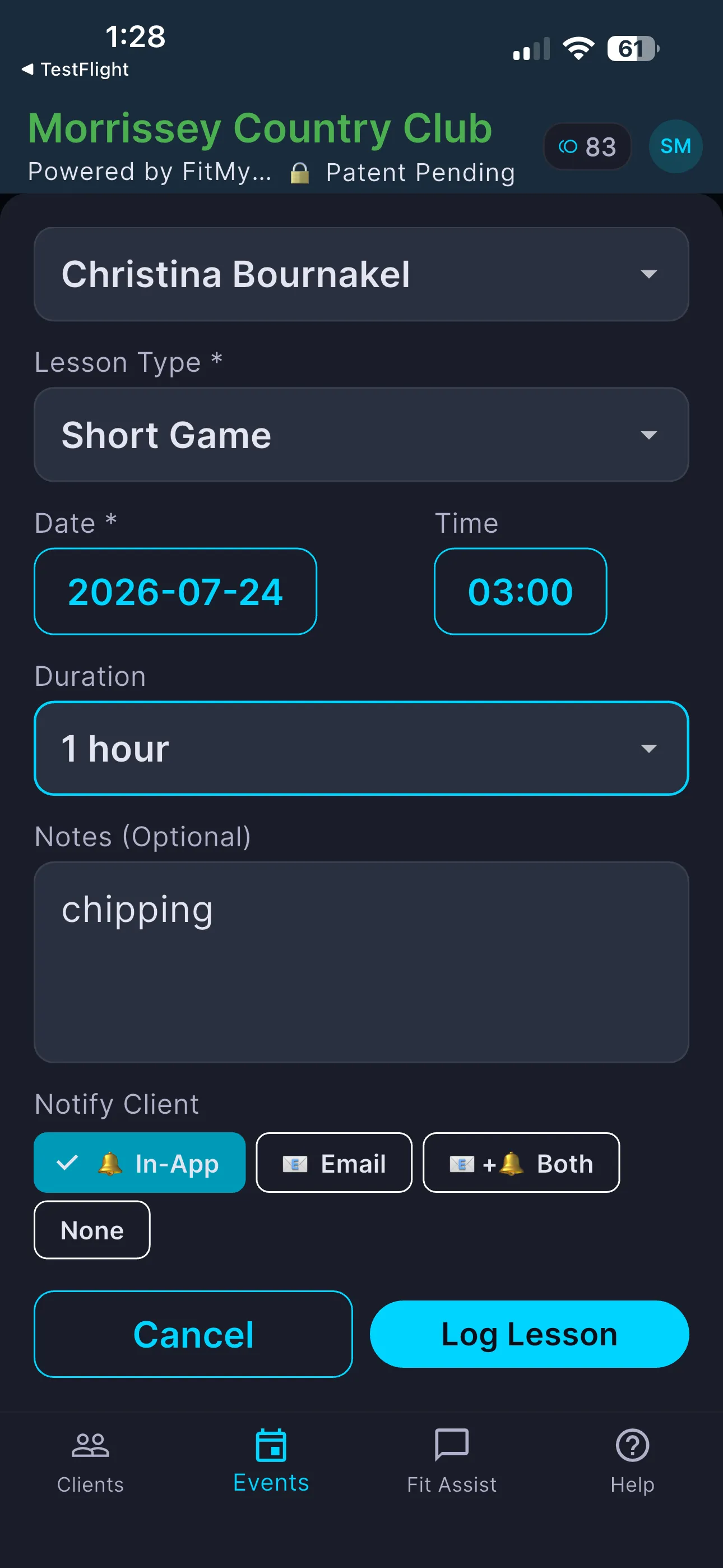
One flow does both — the date picker goes forward and back, so past lessons build a progress history.
Tap + Log Lesson
Pick the client and the rest takes seconds. Unless you choose "None," the client gets notified and the lesson lands on their Events tab and Progress history.
- ✓ Lesson types: Full Swing, Short Game, Putting, Course Management, Playing Lesson, Club Fitting
- ✓ Duration: 30 min, 1 hr, 1.5 hr, 2 hr
- ✓ Notes — what you covered, key takeaways, next steps
- ✓ Notify: In-App (default), Email, Both, or None
Clients see it — and RSVP
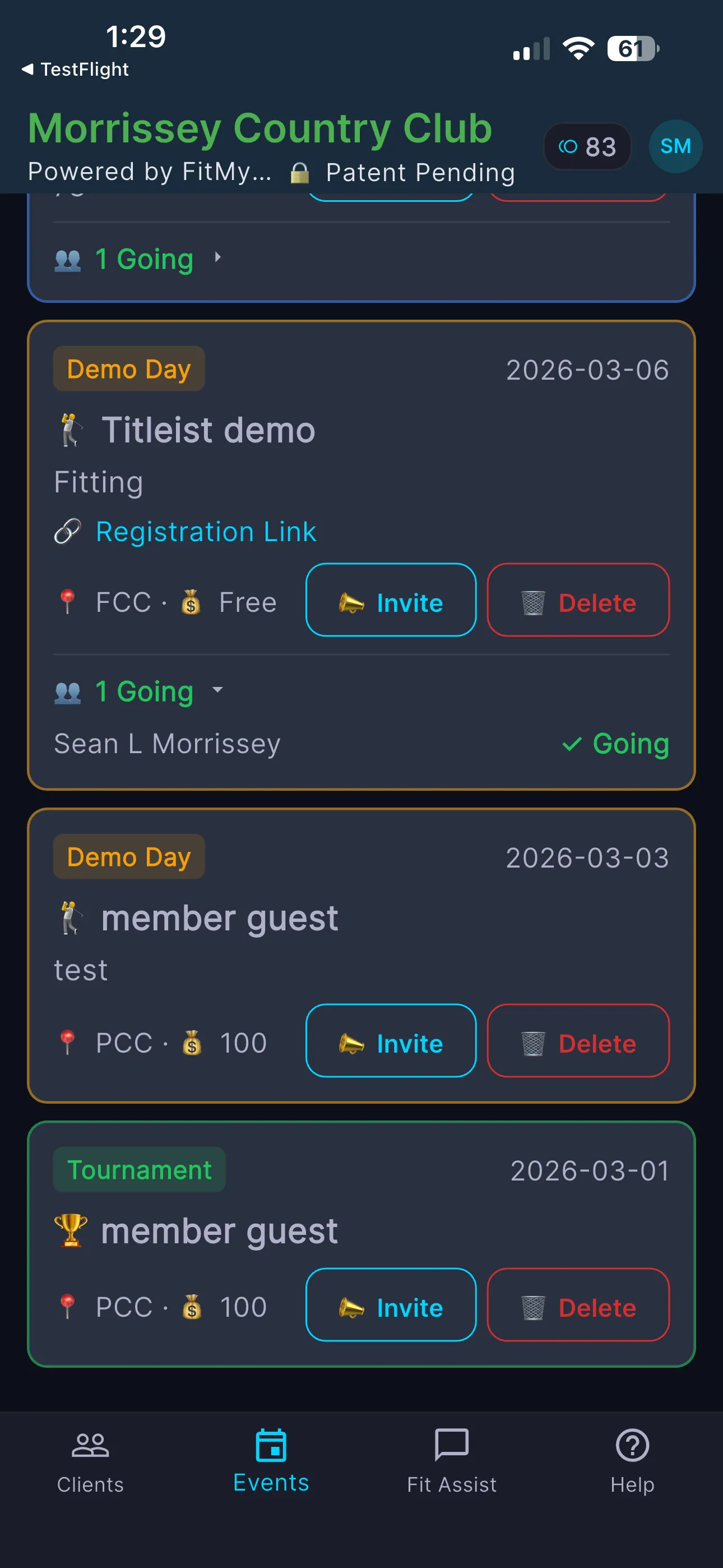
Every event and lesson shows up on the client's side automatically. Back on yours, each card rolls up the responses so you know your clinic has twelve going before you order the range balls.
- ✓ Events roll up as Going / Maybe
- ✓ Lessons roll up as Confirmed / Reschedule
- ✓ Expand any card to see who replied what
- ✓ Logged lessons build each client's progress record
List when you're planning. Calendar when you're looking ahead.
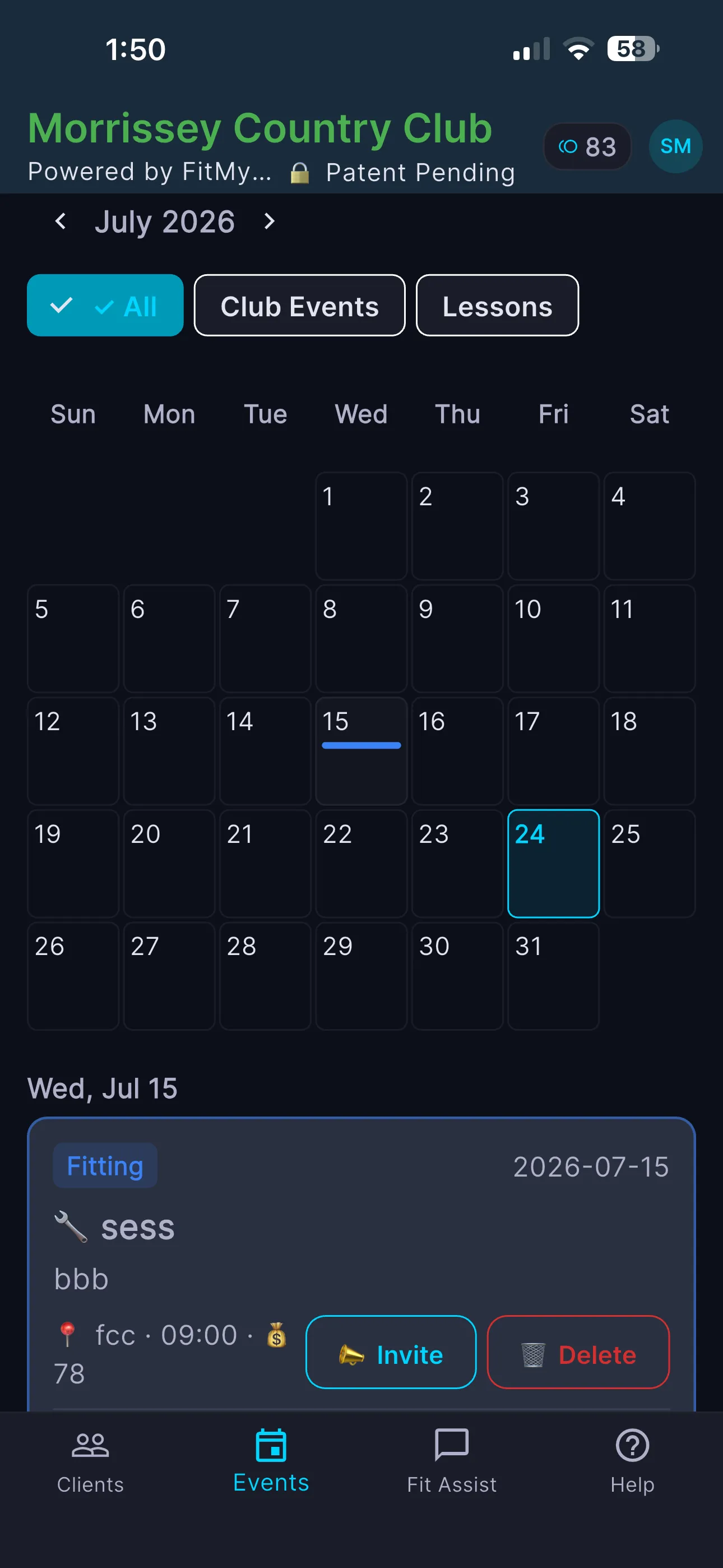
Two views, one schedule
List is your running agenda; Calendar is a month grid with a color bar on every day that has something on it.
- ✓ Filter All / Upcoming / Past
- ✓ Toggle Club Events / Lessons
- ✓ 📣 Invite more clients to any existing event
- ✓ 🗑️ Delete with a confirm step
Why this beats a generic scheduler
A calendar app can hold a time slot. It can't tell you the student showing up at 2pm has a driver two inches too long, a wedge with worn grooves, and an unread fitting proposal. Here, scheduling sits on top of each client's actual bag, grade, and history — every lesson is connected to the work, not just the clock.
Run your whole teaching calendar in one place.
Schedule lessons, run events, and keep every client's progress in one record.
Create Your Pro Account →Common questions
Yes. The Log a Lesson flow lets you pick a past date, so you can record completed lessons and build each client's progress history — not just book future ones.
You choose. When you create an event or log a lesson you pick the delivery method — in-app, email, or both (or none). Every event also appears in all your clients' Events tab automatically; SMS goes out to clients who have opted in.
Yes. Events roll up as Going / Maybe and lessons as Confirmed / Reschedule, and you can expand any card to see exactly who responded.
Demo days, clinics / group lessons, fitting sessions, tournaments, member events, programs / leagues, and a catch-all Other. Each type is color-coded on your calendar.